
Log in or Register.
Download Trial Buy now

Indigo for Revit Tutorial

This tutorial will cover getting Indigo running with Revit on your computer. We will use the Indigo for Revit exporter to export scenes to Indigo.

If you have not purchased an Indigo licence, you can still follow this tutorial. Indigo will run in trial mode, which will apply some watermarks to Indigo renders.

For this tutorial, we will assume that you have one of either Revit 2010, Revit 2011, or Revit 2012 installed.

Step 1: Download and install Indigo Renderer

Download the latest version of Indigo Renderer for Windows here: http://www.indigorenderer.com/download-indigo-renderer

If you have a 32-bit operating system, or you are not sure, download Indigo Renderer for Windows 32-bit.

If you have a 64-bit operating system, download Indigo Renderer for Windows 64-bit.

Run the installer, and if it asks "Do you want to allow the following program to make changes to this computer", select "Yes".

Then accept the licence agreement.

On the "Choose components" page, leave all components selected, and press "Next".

On the "Choose Install location" page, leave the Destination Folder as it is, and press "Install".

Press "Finish".

Indigo will open, close it.

Step 2: Install Indigo for Revit

Download and run the latest Indigo for Revit installer here: http://www.indigorenderer.com/revit

You will have to fill out some basic information on the form at the right side of the page, and then click the 'Download Trial' button:

download

Your browser should then display a PDF file, which will contain links to the 64-bit and 32-bit Indigo for Revit installers. If you have 64-bit Revit installed, you should use the 64-bit installer, otherwise you should use the 32-bit installer.

Run the relevant installer.

If the installer asks "Do you want to allow the following program to make changes to this computer", select "yes".

The Indigo for Revit installer will automatically detect Revit 2011 and Revit 2012, and will ask if you'd like to use Revit 2010 (as it cannot be auto detected):

Installing Indigo for Revit 2010

Select yes if you'd like to use Indigo for Revit with Revit version 2010, and for any other versions you'd like to use when prompted.

Indigo for Revit should now be successfully installed and integrated into Revit.

Step 3: Rendering with Indigo from Revit

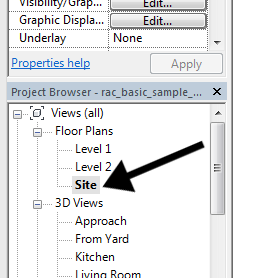
Start Revit and open the Advanced Sample Project. Due to limitations imposed on Revit plugins, Indigo for Revit cannot be used while in a perspective view. First select a non-3D view from the views list:

Selecting a non-perspective view

Having changed to a non-perspective view, we can access the Indigo Renderer section from the "Add-ins" menu:

Indigo Renderer addins

Click on "Edit Render Settings", then in the options dialog select the Parking Area view, and the Exterior tone mapping preset:

Selecting a non-perspective view

Click Ok to save the settings, then click "Render with Indigo". After a brief export process, it should launch Indigo Renderer and begin rendering the scene from the selected view, which should look like this:

Preview render