Render Settings
-
Mode Configuration
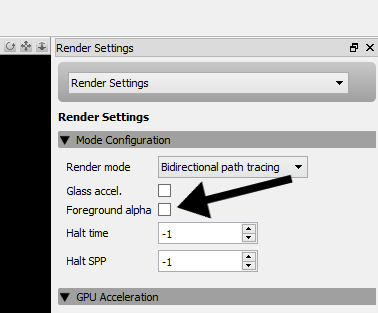
Render mode: This drop-down box allows you to select the render mode with which you'd like to render the scene. There are four normal rendering modes and two rendering modes aimed at compositing applications: alpha and material ID rendering.
If you are unsure which rendering mode to use a safe default is bidirectional path tracing, and there is also a render mode guide to help you choose.
Foreground alpha: This render mode sets background pixels to transparent (alpha zero). See Foreground Alpha for more details.
Halt time: Specifies the number of seconds, from the beginning of the render, until rendering is halted (instead of the usual unbounded rendering time).
Halt SPP: Specifies the number of samples per pixel (SPP) at which rendering is halted (instead of the usual unbounded number of samples per pixel).
-
OpenCL (CPU and GPU) Rendering
This section is only visible if a supported GPU (or CPU device, if CPU devices are enabled) was detected. Please see the System Requirements page for more information on GPU acceleration requirements.
Enable OpenCL Rendering: This checkbox specifies whether OpenCL should be used for rendering. Note that Indigo currently does not support bidirectional path tracing with OpenCL rendering, so enabling this will temporarily force single-directional path tracing.
Device Selection: This control allows you to select one or more devices to use for OpenCL rendering.
When a device is selected, some additional information about the device is listed below.
Max path depth: This sets the maximum number of bounces for a path. Setting this to a smaller number will speed up the rendering, but may result in complicated glass geometry rendering incorrectly. Likewise, increasing this setting will slow down the rendering.
-
Metadata
This section displays assorted information about the currently loaded scene.
Foreground Alpha
Foreground alpha is a rendering mode that sets the pixel alpha (opacity) based on if the pixel is considered to be in the scene foreground or background.
If you enable foreground alpha, then when you save your image to PNG or EXR, or any format that supports an alpha channel, then transparency information will be included in the saved image. This allows for easy compositing of the objects in your scene over a background image.
For an example, see the Compositing with shadow pass tutorial.
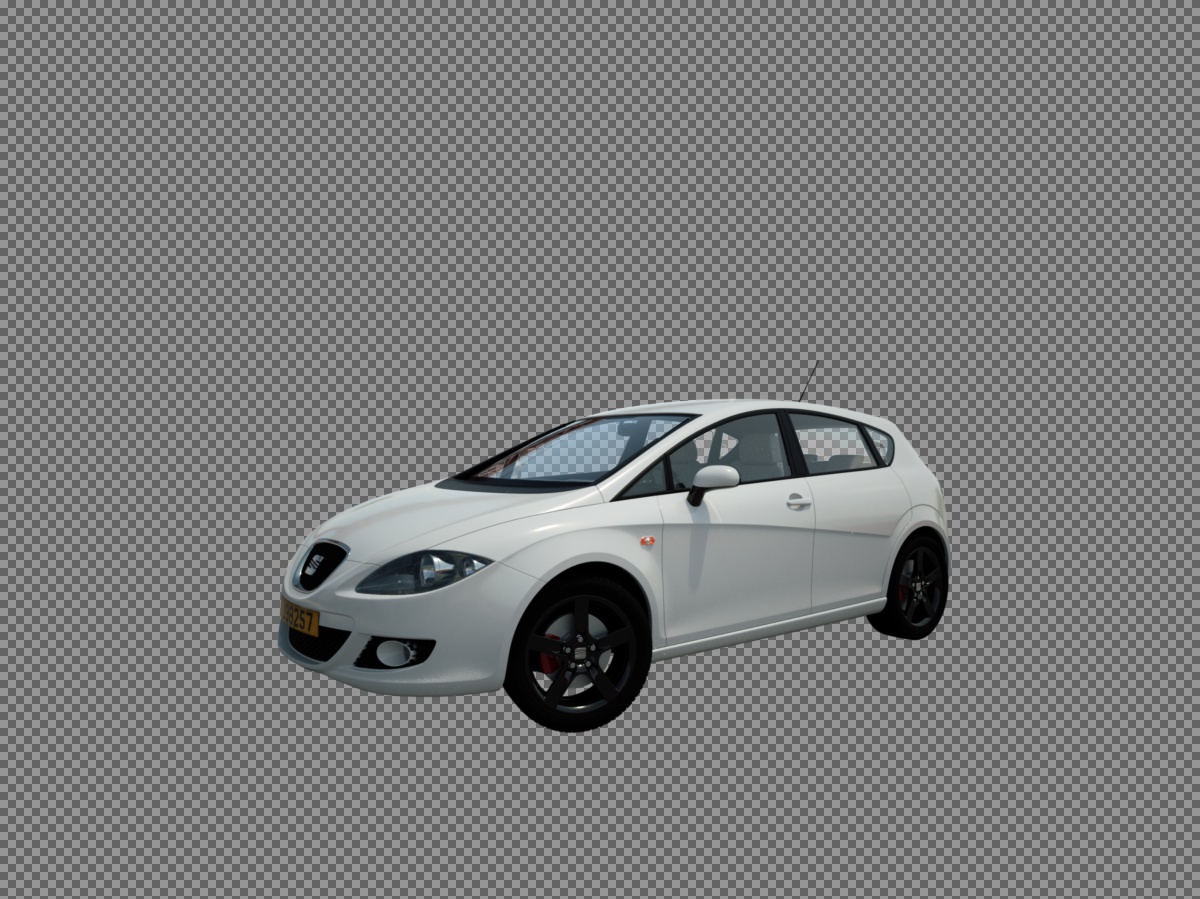
Here is a render made with foreground alpha enabled. The grey checkerboard pattern indicates alpha zero (fully transparent) pixels.
The foreground alpha option is found in the render settings section: